Screenshot Uploader for Claude Code
A cross-platform solution for a common pain point: you can’t paste screenshots directly into Claude Code when working over SSH.
The Problem
When using Claude Code on a remote server via SSH, there’s no way to share screenshots directly. You’d have to manually upload images, find the path, and type it out - breaking your flow.
The Solution
These tools run in the background on your local machine and automatically:
- Detect new screenshots (file system monitoring on macOS, clipboard monitoring on Windows)
- Upload them instantly to your server via SSH
- Copy the remote path to your clipboard
- Ready to paste - just paste the path in Claude Code and it can see your screenshot
Zero interaction required after setup.
macOS / Linux Version
Shell-based tool using native macOS utilities.
Tech Stack
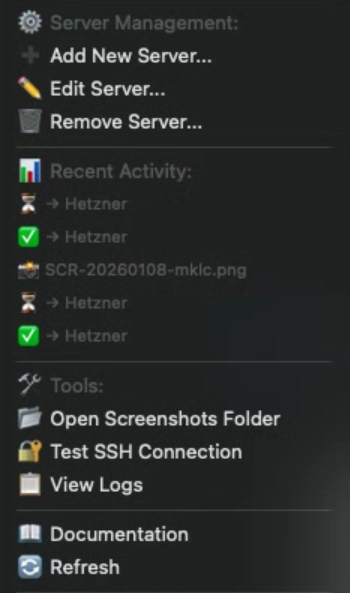
fswatch- File system monitoring for new screenshotsrsync- Efficient file transfer over SSHpbcopy- Clipboard integrationlaunchd- Background service managementxbar- Optional menu bar status indicator
Features
- Monitors screenshot folder in real-time
- Runs as a background launchd service
- Menu bar icon shows upload status
- Optional auto-delete of local files after upload
- One-command installation with
setup.sh
Windows Version
Python-based system tray application.
Tech Stack
- Python 3.8+
pywin32- Windows API integrationparamiko- SSH connections- System tray with
pystray
Features
- Monitors clipboard for new images
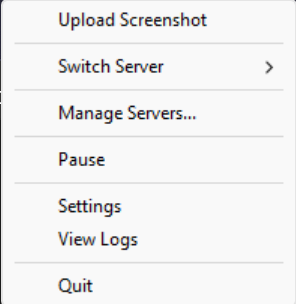
- System tray icon with right-click menu
- Windows notifications for upload status
- Pause/resume monitoring
- Auto-startup support
- One-click installer with
install.bat
Security
Both versions use SSH key authentication - no passwords stored. Your screenshots are transferred directly to your server over an encrypted connection.
Why I Built This
I use Claude Code extensively on remote servers and constantly needed to share screenshots for debugging UI issues, showing error messages, or demonstrating problems. This tool eliminated the friction entirely - now I just take a screenshot and paste.
← Back to projects